Native macOS · Menu bar app · No subscription · macOS 14+
Filegen
New Files from Finder
Filegen puts “new file” back where you work. Right-click a folder in Finder, or press ⌃⌥⌘N, pick a template, and press Return. No window to keep open, no account, no uploads — everything stays on your Mac.
Version 1.0.0 · DMG 1.7 MB · macOS 14+ · What’s new
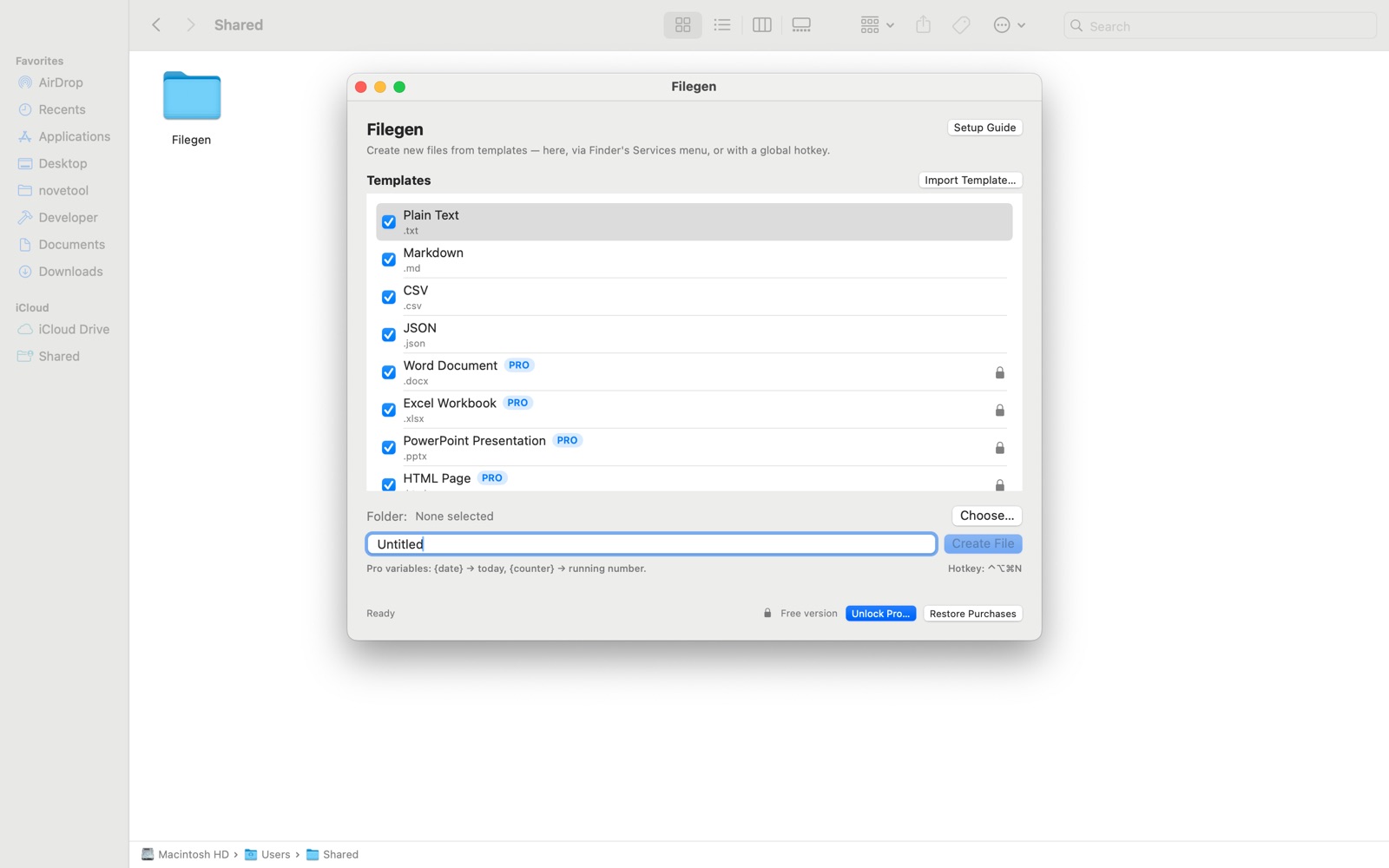
Three ways to create a file
Finder has never had a “new file” command. Filegen adds one in the places you already work — and gets out of the way the rest of the time.
-
Finder service
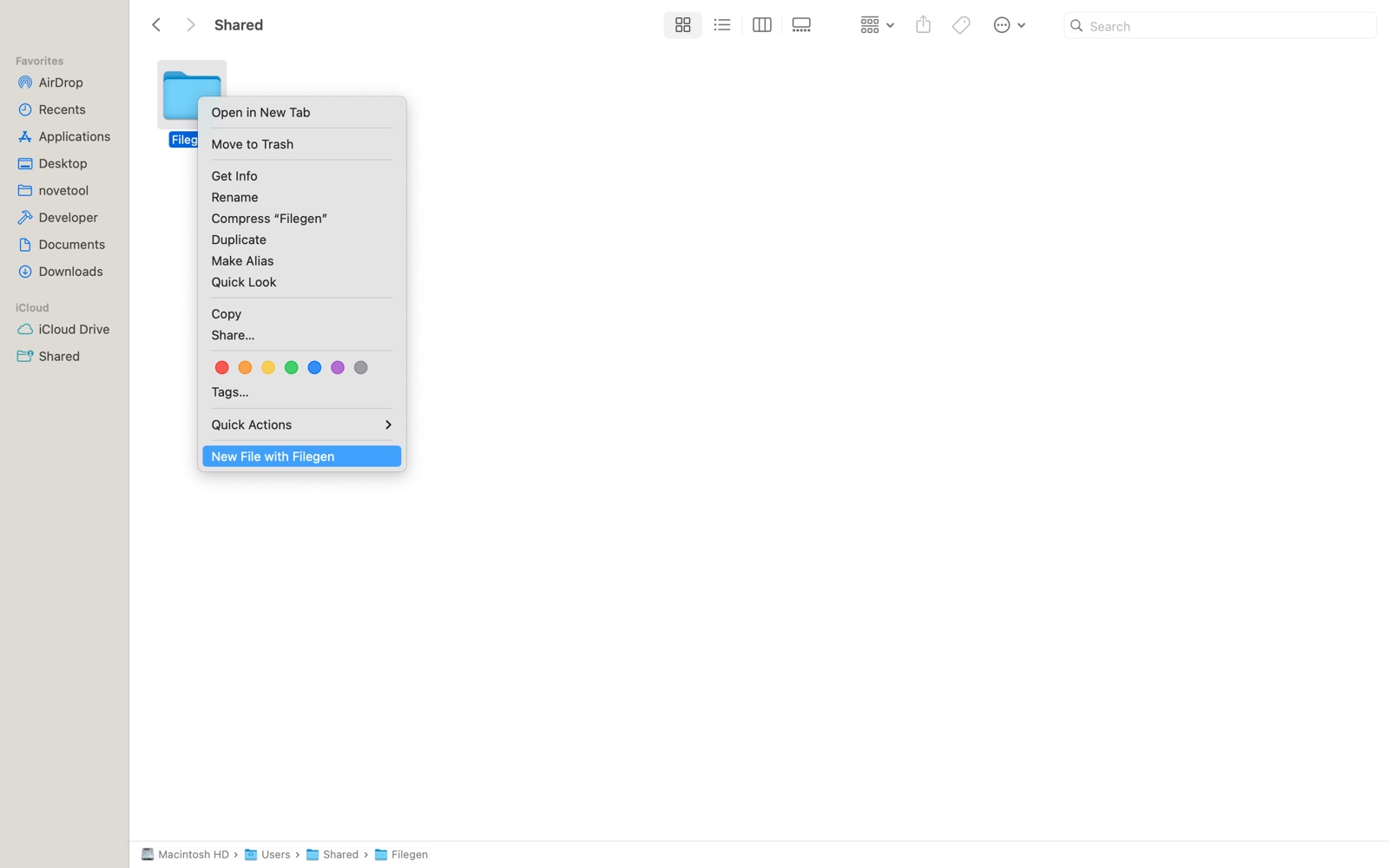
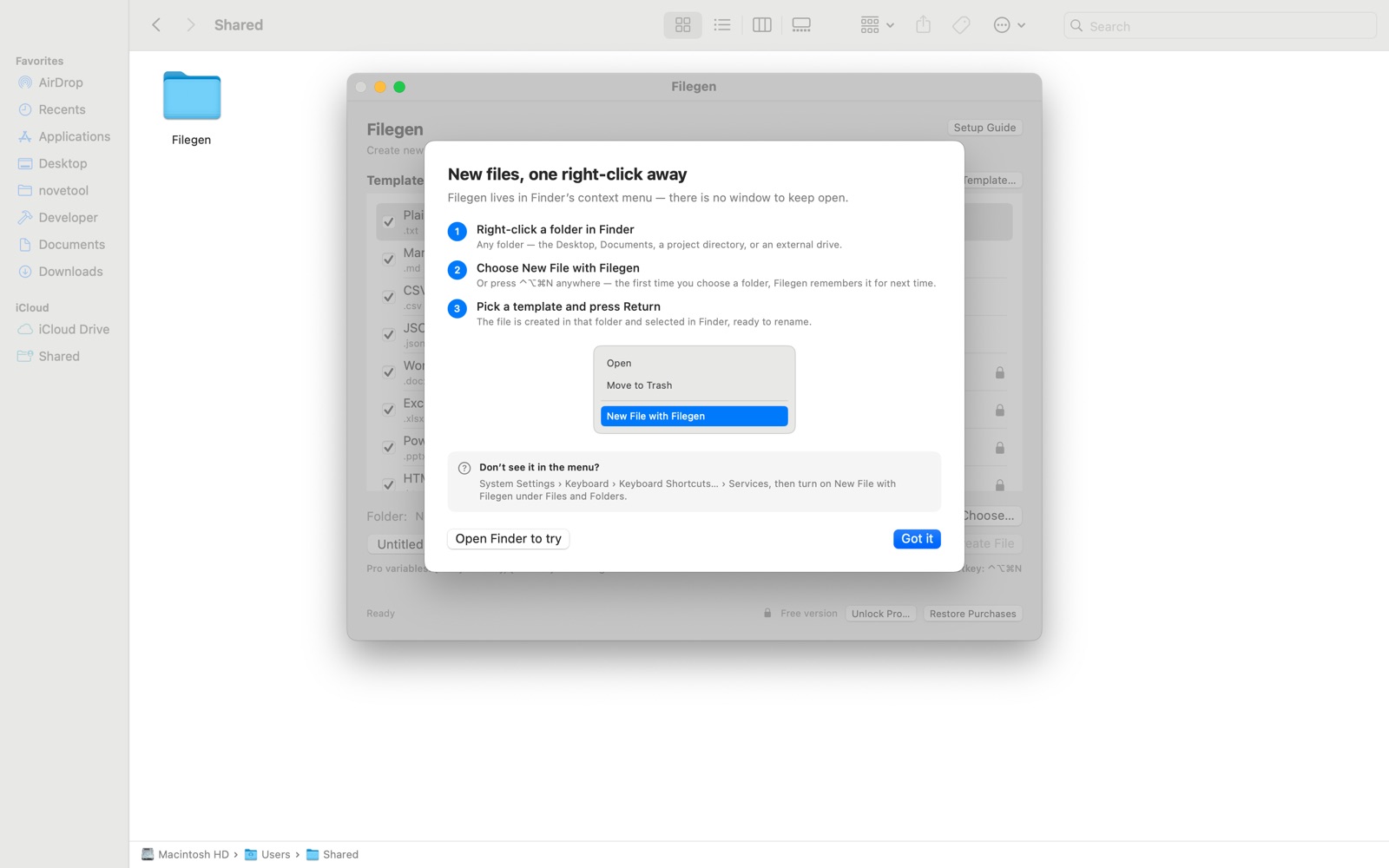
Right-click a folder and choose New File with Filegen — it appears inline at the bottom of the folder context menu, not inside a Services submenu. Enable it once in System Settings › Keyboard › Keyboard Shortcuts… › Services › Files and Folders.
-
Global hotkey
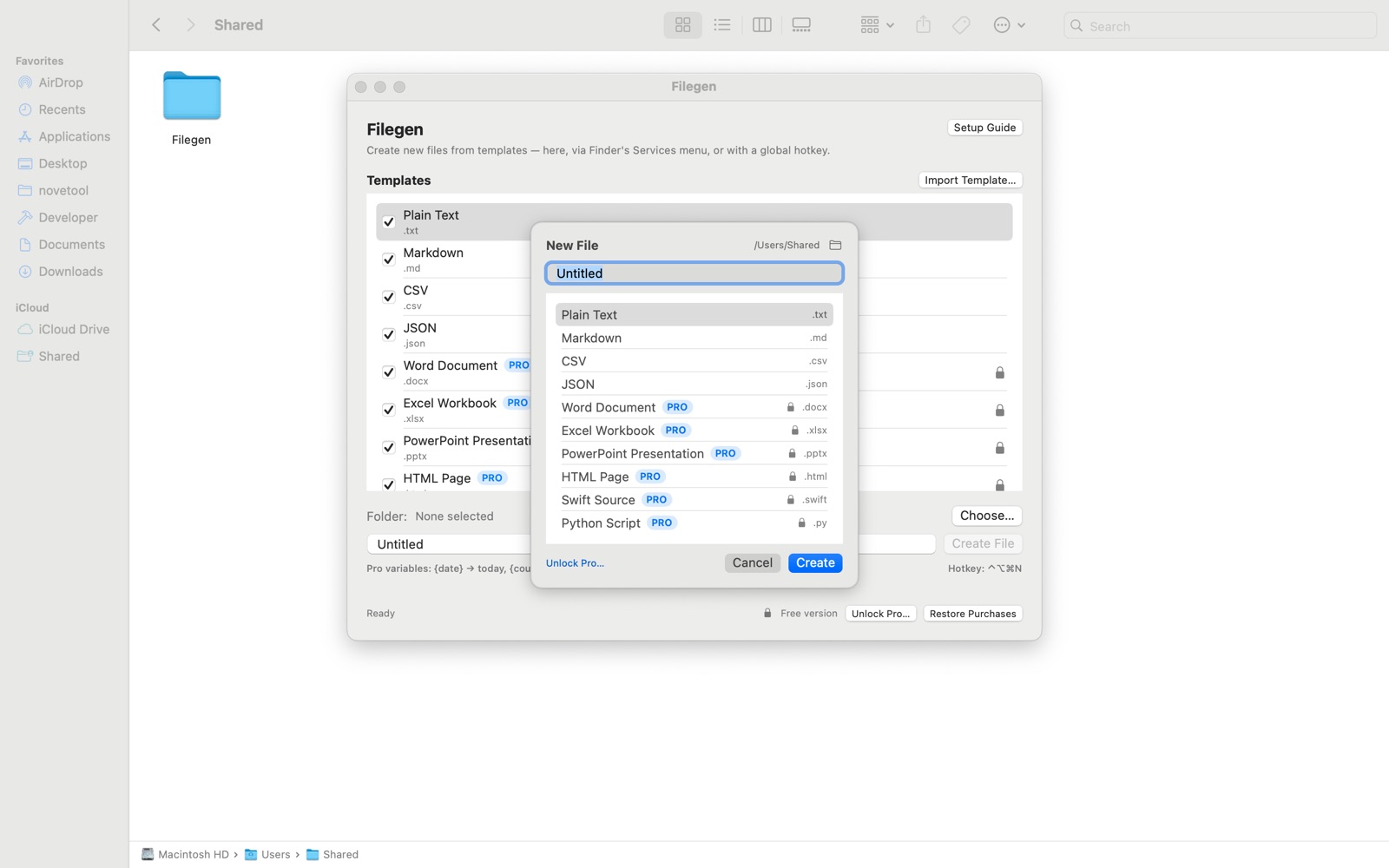
Press ⌃⌥⌘N and the picker opens at your pointer. The target is the frontmost Finder window, or the Desktop when no Finder window is open.
-
Menu bar
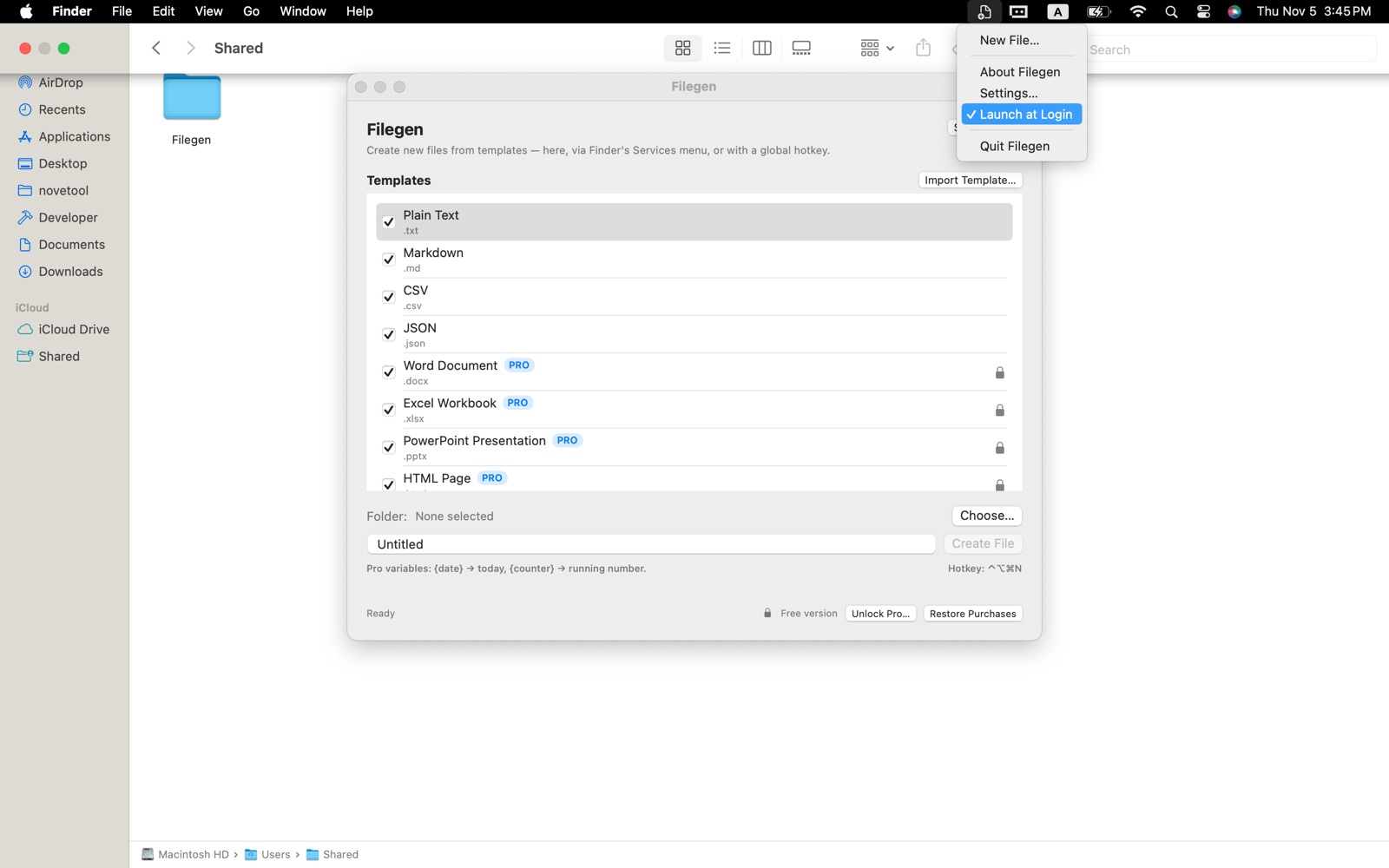
New File…, About, launch at login, and Quit — all from the menu bar icon. No Dock icon, no Cmd-Tab entry.
Key Features
A small, focused tool for one of the most repeated actions on a Mac.
-
Right-Click, Two Clicks
Select any folder in Finder and choose New File with Filegen. It sits inline at the bottom of the folder context menu — not buried in a Services submenu. Pick a template, press Return, and the file is created in that folder.
-
One Keystroke Anywhere
Press ⌃⌥⌘N to open the picker at your pointer with the filename pre-filled. Return creates the file. If another app already owns the shortcut, Filegen shows a “Hotkey unavailable” warning instead of failing silently.
-
Menu Bar, Not the Dock
Filegen lives in the menu bar with no Dock icon and no Cmd-Tab entry. It stays resident so the shortcut is always ready; the main window only appears when you ask for it.
-
Free Templates, No Limits
Plain Text, Markdown, CSV, and JSON are free forever — no file-count limit, no time limit, no signup. Create as many files as you like in any folder you can write to.
-
Real Office & Code Templates · Pro
Word (.docx), Excel (.xlsx), and PowerPoint (.pptx) are genuine minimal Office Open XML files. HTML ships an HTML5 skeleton, Swift an import Foundation stub, and Python a proper shebang line.
-
Your Own Files as Templates · Pro
Import any file and reuse it forever. Filegen stores its own copy — the original is never modified or moved — and your custom templates appear in both the main window and the Finder picker.
-
Date-Stamped Names · Pro
Drop {date} into the filename and it expands to today’s date in your system locale’s component order, with separators normalized to hyphens. Unknown placeholders are left untouched, so literal braces survive.
-
Never Overwrites
If the name is taken, Filegen appends “ (1)”, “ (2)”, and so on before the extension — Untitled.txt becomes Untitled (1).txt. Collision checks are Unicode-normalized and case-insensitive, matching what macOS rejects.
-
Every Selected Folder
Select several folders at once and the service creates the file in each of them in a single pass — no repeating the flow folder by folder.
-
Only the Templates You Use
Enable or disable each template individually. Only the enabled ones are offered in the Finder picker, so the list stays short and predictable.
-
Optional Launch at Login
Filegen can start with your Mac so the hotkey always works. It is registered on first launch when the system accepts it, and you can turn it off from the menu bar at any time.
-
Native & Private
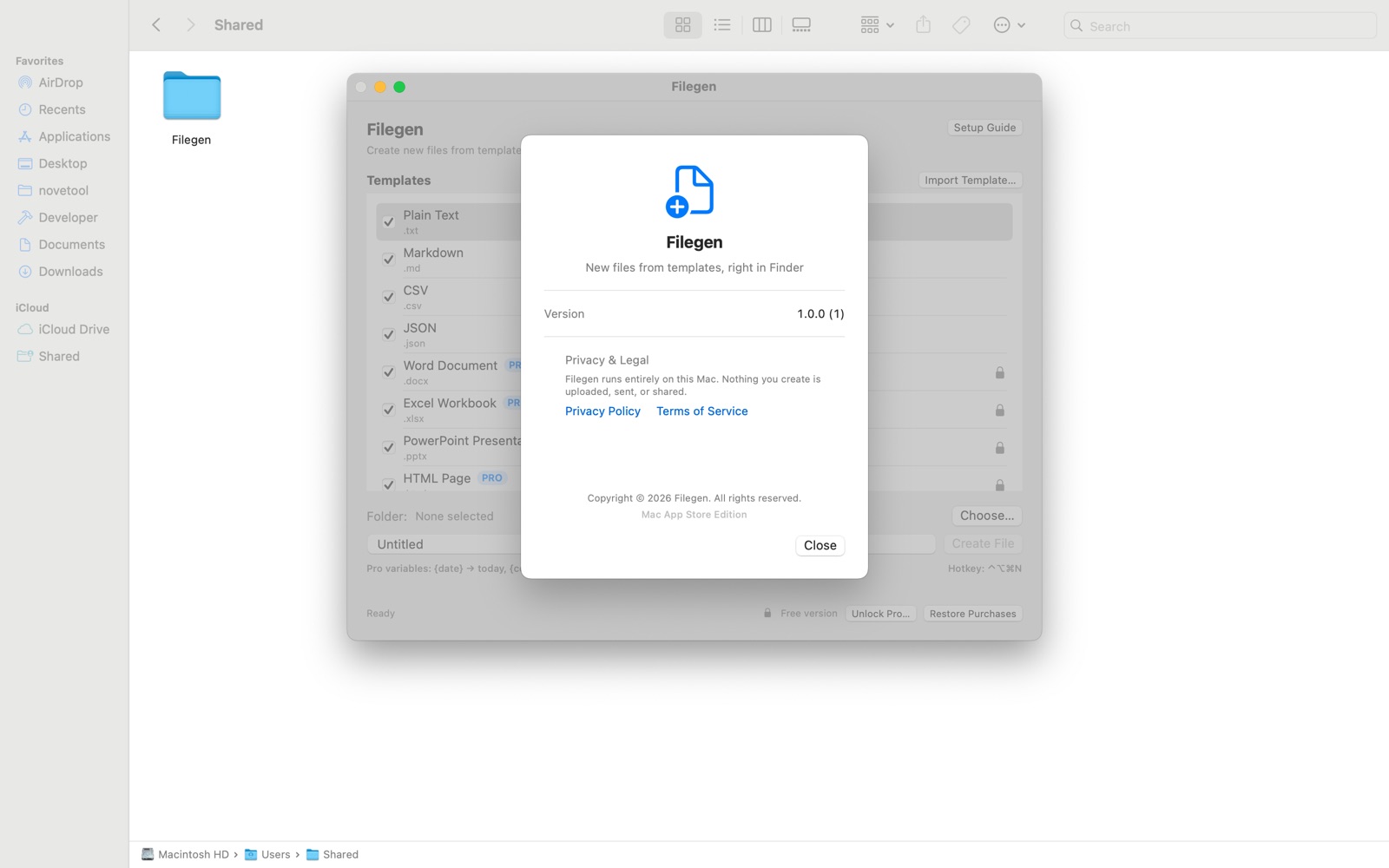
A Universal binary for Apple silicon and Intel, with no helper tools and no background daemons. Everything runs locally — no account, no uploads, no telemetry.
-
English Interface
The interface is English-only in version 1.0. Date-based filenames still follow your Mac’s regional settings for month and day order.
Why Choose Filegen
A tiny utility that respects your files, your permissions, and your menu bar.
- Files are created entirely on your Mac — contents never leave the device
- No account, no subscription, no telemetry, no third-party SDKs
- Existing files are never overwritten
- Three entry points: Finder service, global hotkey, and the menu bar
- No Accessibility permission required for the global hotkey
- Universal binary — native on Apple silicon and Intel
Pricing
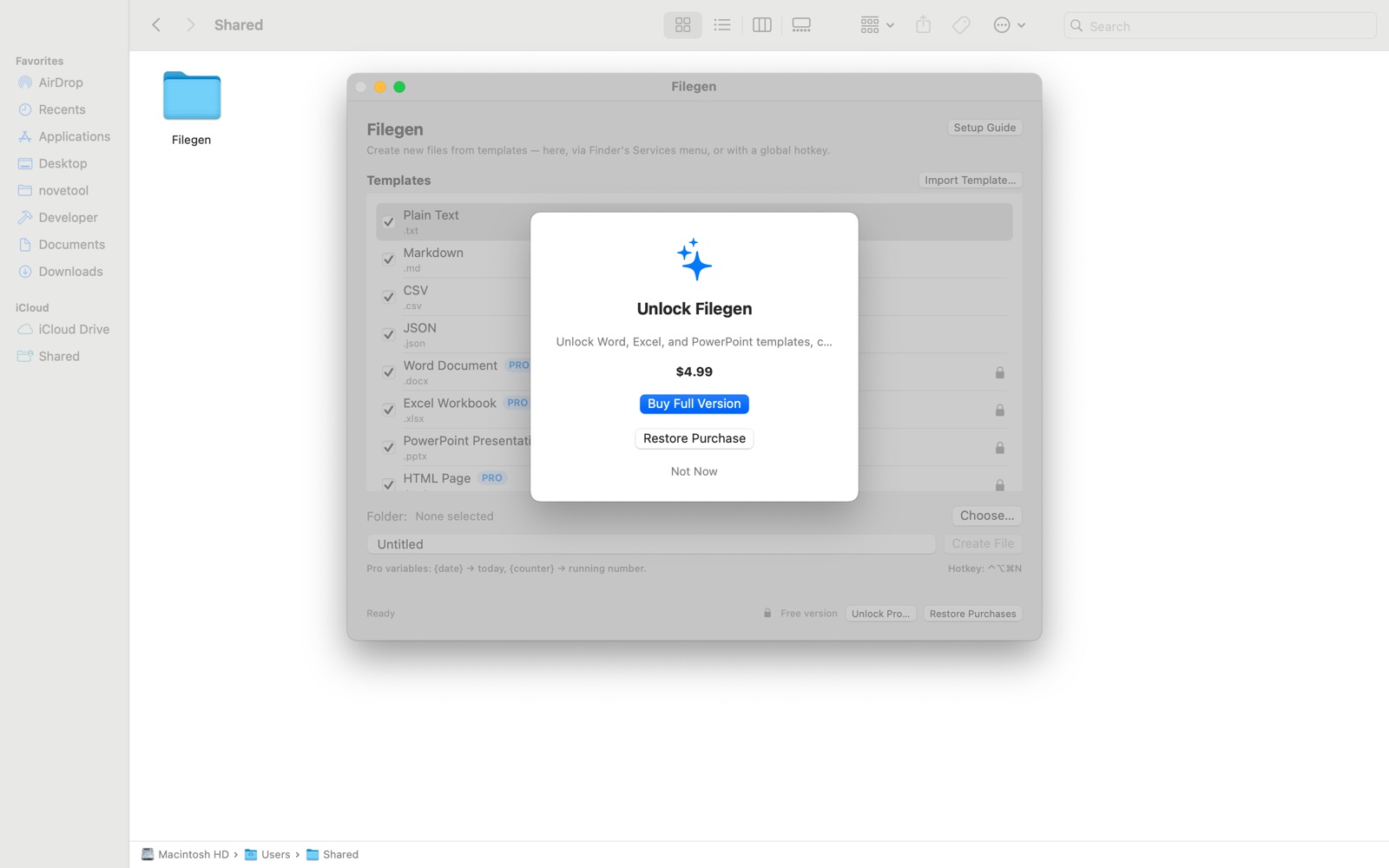
Start free with four templates and no limits. Unlock Pro once — use it forever. No subscription.
Free
$0
The core tool, free forever. No time limit, no signup, no file-count limit.
- Plain Text, Markdown, CSV & JSON
- Unlimited files in any writable folder
- Finder service & global hotkey
- Enable or disable each template
App Store
Family Sharing$4.99
One-time purchase on the Mac App Store. Tied to your Apple ID.
Everything in Free, plus:
- Word, Excel, PowerPoint, HTML, Swift & Python
- Custom templates from your own files
- Date-based filenames
- Apple Family Sharing
Direct (DMG)
3 Macs$4.99
Download from novetool.com. One license for up to 3 Macs.
Everything in Free, plus:
- Word, Excel, PowerPoint, HTML, Swift & Python
- Custom templates & date-based filenames
- Direct edition: any folder, plus Finder automation for the hotkey
- 1 license, up to 3 Macs
One-time payment by Creem · License key sent to your email · Card, PayPal, Apple Pay & more
Who is it for
For anyone who creates blank files all day and is tired of the Save As detour.
- Developers
- Writers & Marketers
- Students
- Designers
- Data & Spreadsheet Users
- Office Teams
- Anyone tired of Save As…
Screenshots
Small panels, short lists, and one keystroke — the whole interface.
Put “new file” back in Finder
Download Filegen free — four templates, no file limits, no signup. Everything runs locally on your Mac, and existing files are never overwritten.